Connecting an AI Assistant to Your Care Data: What It Can See, What It Can’t, and Who’s Responsible
ShiftCare runs an MCP server, which lets a person connect an AI assistant such as Claude, ChatGPT or Microsoft Copilot to their own ShiftCare account. Once connected, the assistant can read that person’s ShiftCare data, never more than they can already see in the app. Reads are available to admins and back-office roles; writing is restricted to admins, and both are switched off unless an admin turns them on.
The Boundary Almost Everyone Gets Wrong
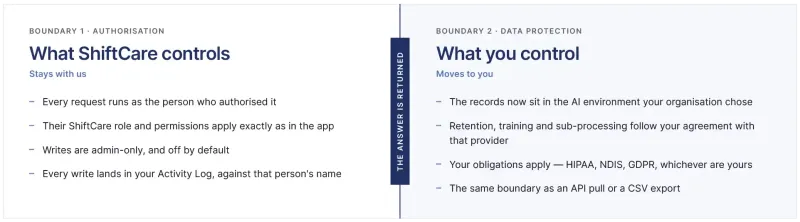
There are two boundaries here, and providers routinely assume they’re the same one. They aren’t, and knowing where each sits is the difference between a controlled rollout and an incident.
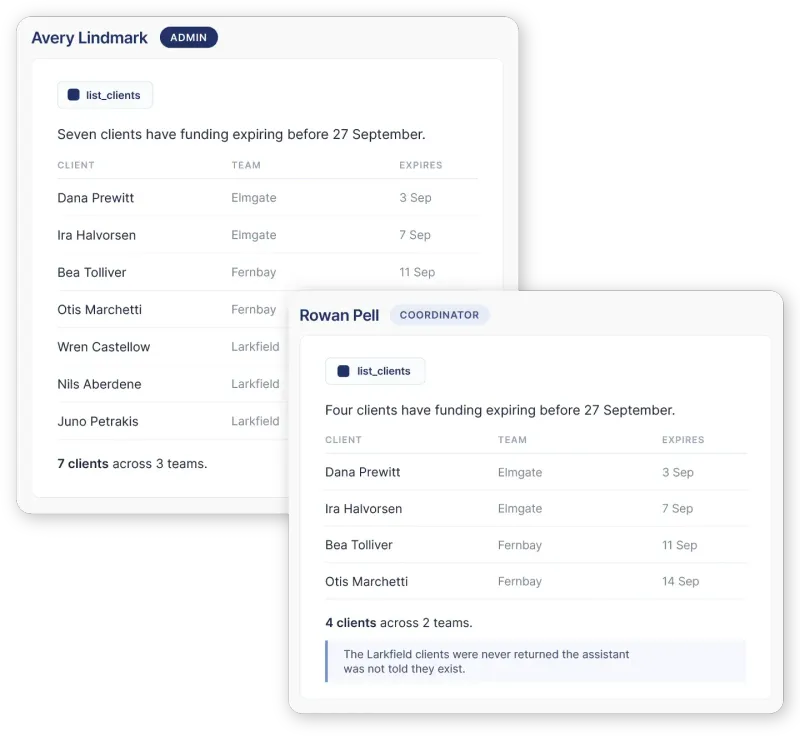
The first boundary is authorisation, and it stays with ShiftCare. Every request an assistant makes is made as the person who connected it. Their ShiftCare role and permissions apply exactly as they do in the app. A coordinator restricted to two teams has an assistant restricted to two teams. There is no service account behind the connection with a wider view than the human has.
The second boundary is data protection, and it moves to you the moment an answer is returned. Once records leave ShiftCare’s infrastructure, they’re in the AI environment your organisation chose. What happens next is governed by your agreement with that AI provider, not by ours. This is the same shape as an API pull or a CSV export: we provide a controlled means of access, and the processing, storage and protection of what comes out sits with you.
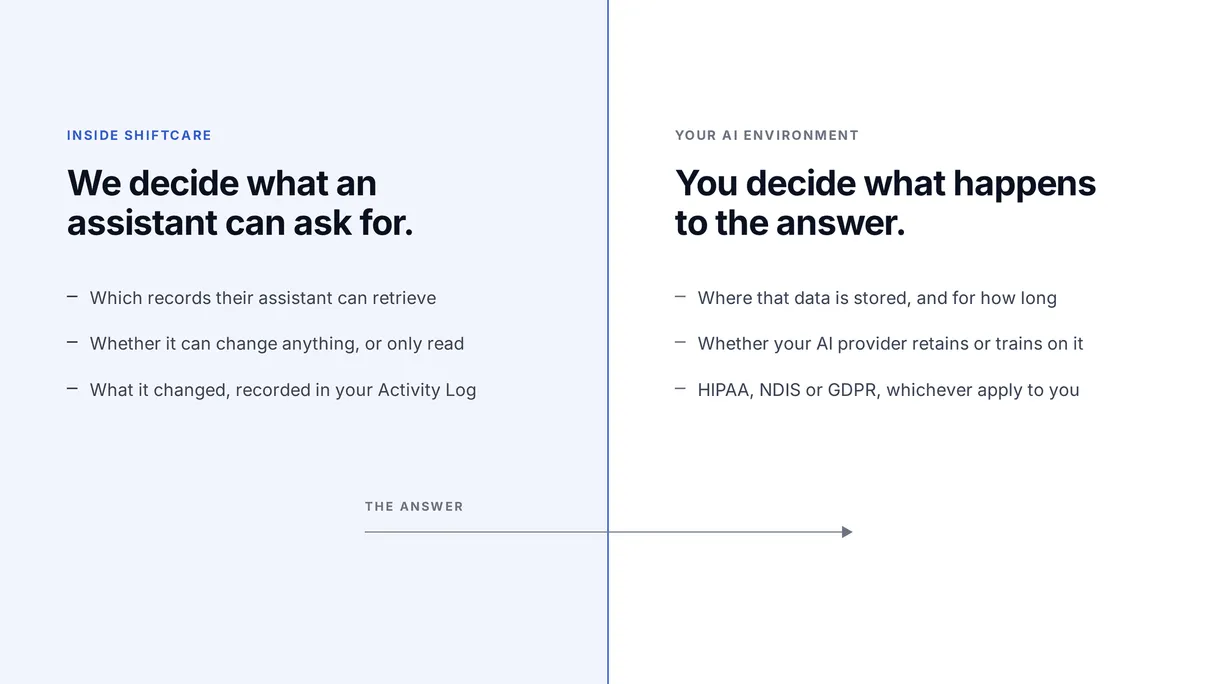
So the honest summary is: we decide what an assistant is allowed to ask for. You decide what happens to the answer. Any vendor telling you they’ve solved the second half is describing something they don’t control.
| Question | Who answers for it |
|---|---|
| Which records can this person’s assistant retrieve? | ShiftCare, enforced by their role and permissions |
| Can this person’s assistant change anything? | ShiftCare, writes are admin-only, and off by default |
| Where is that data once the assistant has it? | You, under your agreement with your AI provider |
| Is that AI provider acceptable for your PII and PHI obligations? | You |
| What did this person’s assistant change? | ShiftCare, every write is in your Activity Log |
| Is the conversation itself visible to ShiftCare? | Nobody, we can’t see it |
Important: ShiftCare cannot see your conversations. We don’t operate, host or control your assistant. We can’t view its context and we don’t interact with it beyond answering the specific data requests it makes on your behalf. The MCP server itself runs no AI and performs no model inference. It’s a data interface, not a model.
Who Can Connect, and What Can They Do?
Three settings control this, and they cascade. Turning access off turns the other two off with it.
| Setting | Default | What it does |
|---|---|---|
| MCP: External AI Model Access | Off | The parent switch. Nothing works until this is on. |
| Allow Back Office Access | Off | Extends read access beyond admins to coordinator, HR, ops and support roles. |
| Allow Write Actions | Off | Lets an assistant create, update and cancel records (admins only). |
That produces three tiers of person, and the tiers are not negotiable from inside the AI:
| Role | Reads | Writes |
|---|---|---|
| Admin | Yes | Yes, if Allow Write Actions is on |
| Coordinator, HR, ops, support | Yes, if Allow Back Office Access is on | No. Never, regardless of the write setting |
| Support worker, reader, kiosk | No | No |
Back-office users cannot write, even when write actions are enabled. That isn’t a configuration you can loosen in the settings page; it’s how the access gate is built. A coordinator’s assistant can tell them which shifts are unfilled on Saturday. It cannot fill them.
Support workers can’t connect at all. The people whose phones carry the app are the people with no MCP access, which is the right way round for a workforce where personal AI accounts are outside your control.
ShiftCare staff can’t use it on your behalf. When our support team views your account to help with a ticket, that session is blocked from MCP entirely.
Which AI Assistants Can Connect?
This is the part the market gets wrong, because “supports MCP” means four different things depending on the assistant. None of these are ShiftCare limitations. They’re the state of custom connector support in each product.
| Assistant | Can it connect? | What it takes |
|---|---|---|
| Claude (web, desktop) | Yes | An organisation admin adds ShiftCare once as a custom connector; each person then signs in with their own ShiftCare login |
| ChatGPT (web) | Yes | A workspace admin enables developer mode and publishes ShiftCare as a custom connector. Developer mode is on Business, Enterprise and Education plans; Plus and Pro users can enable it for themselves only |
| Microsoft Copilot | Yes, via Copilot Studio | Copilot has no plug-and-play connector field. An admin builds and publishes a Copilot Studio agent with ShiftCare as an MCP tool. Needs an M365 Copilot licence and Copilot Studio access |
| Google Gemini | Not in the Gemini app | Gemini’s web app has no custom connector interface. Gemini Enterprise supports custom MCP servers in preview, by Google allowlist. Gemini CLI works today for technical users |
| Claude Code, OpenAI Codex, Gemini CLI | Yes | One command or one config line. For developers and technical users |
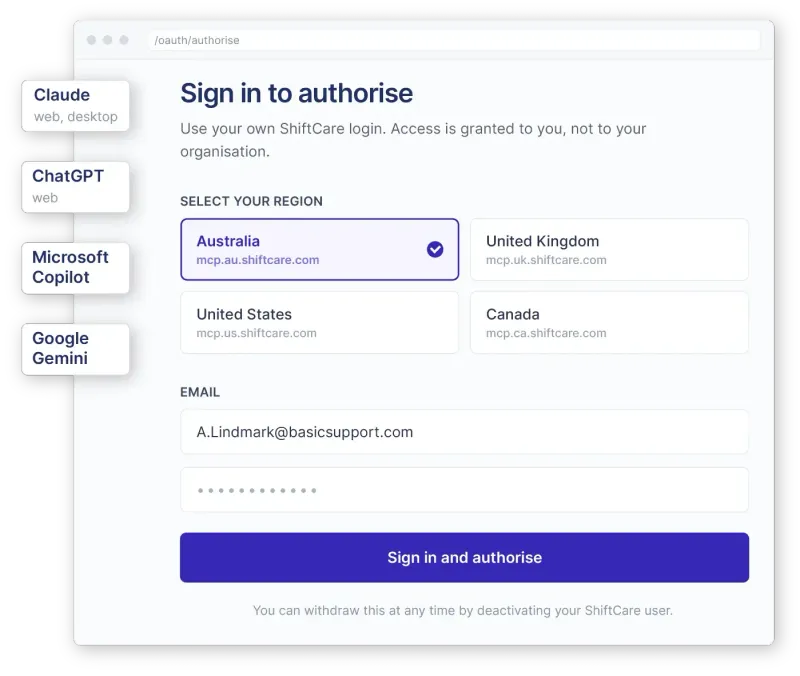
Every person connects with their own ShiftCare login. There is no shared key to distribute and nothing to paste into a settings box. The connection is authorised per person, which is also how you revoke it: deactivate someone in ShiftCare and their assistant loses access with the rest of their account.
Where Does Your Data Go?
Your account lives in one region and connects to the endpoint for that region. You don’t have to look yours up — it’s displayed in Account > AI Settings with a copy button, already set to your account’s region.
| Region | MCP endpoint |
|---|---|
| Australia | https://mcp.au.shiftcare.com/mcp |
| United Kingdom | https://mcp.uk.shiftcare.com/mcp |
| United States | https://mcp.us.shiftcare.com/mcp |
| Canada | https://mcp.ca.shiftcare.com/mcp |
Beyond that endpoint, the destination is whichever AI service you connected. That’s the point of the second boundary above: we can tell you exactly where our side sits, and we can’t tell you anything about where theirs does. Read your AI provider’s terms on retention, training and sub-processing before you connect a care system to it — that’s the document that governs your client data now, not ours.
Don’t confuse this with ShiftCare’s own AI features. The AI built into ShiftCare — note review, summaries, awake time detection — runs inside ShiftCare’s own AWS infrastructure, subject to our data residency and security controls, with no transmission to an external AI provider. Those are separate capabilities with a separate answer. This page is only about the MCP server.
What Does It Cost?
Nothing extra! MCP is part of your ShiftCare subscription.
It does cost you on the other side. Every question an assistant answers using your ShiftCare data consumes usage on your AI plan, and asking one to pull and analyse a large slice of your account can consume a surprising amount of it quickly. A prompt like “summarise every shift last quarter” is a big retrieval before it’s an answer. Scope the question and you scope the cost.
Who Turns It On?
An admin, in Account > AI Settings, in the MCP – External AI Model Access card. It’s the same page that carries every other AI control in the product, and only admins can see it.
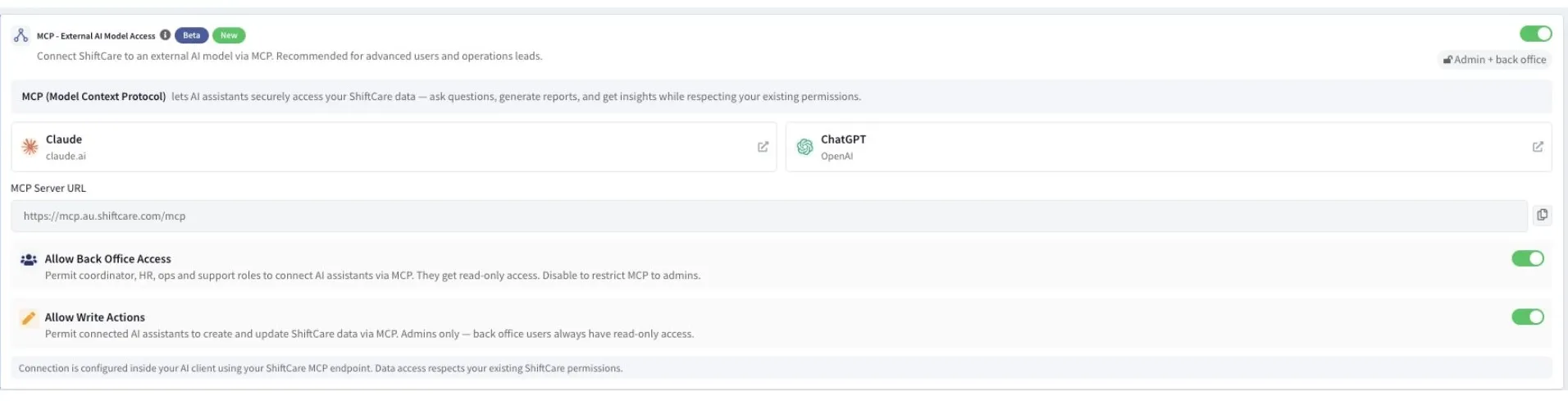
For accounts created from 24 August 2026, MCP access is on by default (including accounts on trial) with write actions and back-office access enabled alongside it. An admin can switch any of the three off at any time.
For accounts created before that date, it’s a setting you turn on yourself. Availability is being extended progressively; if the card isn’t in your AI Settings yet, it’s coming.
One thing worth knowing if you’ve turned AI off across your account: MCP is not controlled by the master AI toggle. It’s governed by its own three settings, deliberately, because it isn’t a ShiftCare AI feature — it’s an access route to your own data. If your position is “no AI touches our data”, switching off the master toggle is not sufficient. Switch off MCP – External AI Model Access as well.
What This Doesn’t Do
Straight answers, because these are the questions that decide whether a provider connects.
- It doesn’t give an assistant more than the person has. Every request runs as the person who authorised it, with their role and permissions applied.
- It doesn’t let back-office staff change anything. Reads only, always, regardless of the write setting.
- It doesn’t let ShiftCare see your conversations. We answer data requests. We have no view of the chat, the context, or what the assistant did with the answer.
- It doesn’t run any AI itself. The MCP server performs no model inference. It’s an interface.
- It doesn’t anonymise what it returns. Unlike ShiftCare’s in-app note scanning, which strips personal identifiers before anything is read, the MCP server returns your records as they are, within that user’s authorisation. If you don’t want a name leaving the system, don’t connect an assistant that shouldn’t see it.
- It doesn’t make your AI provider compliant. Connecting the MCP means accepting responsibility for how your AI processes that data against your own obligations — HIPAA, NDIS, GDPR, whichever apply to you.
- It logs what an assistant changed, but not what it read. Every write lands in your Activity Log like any other change, against the name of the person whose assistant made it. Reads are a different matter: there’s no customer-facing record of which records an assistant retrieved. If your governance needs read-level logging, that’s the gap to plan around.
- It doesn’t work with the Gemini app. Gemini Enterprise (in preview, by Google allowlist) and Gemini CLI do; gemini.google.com does not.
- It doesn’t work without being told. Assistants don’t reliably reach for a connector on their own — say “in ShiftCare” or “via ShiftCare” in the prompt and it will.
Setting It Up
- An admin turns on MCP. Go to External AI Model Access in Account > AI Settings
- Decide on Allow Back Office Access. Do coordinators, HR, ops and support get read access, or admins only?
- Decide on Allow Write Actions. Can an admin’s assistant change records, or only read them?
- Copy your MCP endpoint from that same settings page, and an admin in your AI tool adds ShiftCare once as a custom connector
- Each person connects with their own ShiftCare login, and starts asking
Note: Steps 1 to 3 are settings in your own account. Availability: Australia, United Kingdom, United States and Canada.
See how ShiftCare’s AI and automation features work day to day, or book a demo to see the MCP server in action.
Frequently Asked Questions
What is MCP?
MCP stands for Model Context Protocol. It’s an open standard that lets an AI assistant connect to an external system and request data from it in a structured way. ShiftCare runs an MCP server, so an assistant such as Claude, ChatGPT or Microsoft Copilot can retrieve a user’s ShiftCare data on their behalf, within that user’s existing permissions.
Can ChatGPT access my care management data?
It can if you connect it deliberately. ShiftCare runs an MCP server that a ChatGPT workspace admin can add as a custom connector, after which each team member signs in with their own ShiftCare credentials. Nothing is accessible until an admin enables MCP inside ShiftCare and someone authorises the connection with their own login.
Is it safe to connect an AI assistant to client records?
The access itself is bounded: every request runs as the person who authorised it, limited to what they can already see, and writing is restricted to admins. What isn’t bounded by ShiftCare is what happens after the answer reaches your AI provider — that’s governed by your agreement with them. Assess that provider before connecting, not after.
Can my AI assistant see clients I’m not allowed to see?
No, the connection is authorised as you, and your ShiftCare role and permissions apply to every request it makes. If you’re restricted to particular teams or clients in the app, your assistant is restricted to the same ones. There is no wider service account behind the connection.
Can ShiftCare see my conversations with my AI assistant?
No, ShiftCare acts strictly as a data provider. We don’t operate, host or control your AI assistant, we can’t see your conversations or its context, and we don’t interact with it beyond answering the specific data requests it makes on your behalf.
Does ShiftCare use my data to train AI models?
No, your data is never used to train AI models — it’s disabled by default and cannot be enabled. Separately, if you connect an external AI assistant through MCP, that provider’s own training and retention terms apply to whatever you send it, which is why the choice of assistant matters.
Is data returned through MCP anonymised?
No. The MCP server returns your own operational records, scoped to the permissions of the person who authorised the connection, without selective anonymisation. This is different to ShiftCare’s in-app AI features, which strip personal identifiers such as names, phone numbers and addresses from support notes before anything is scanned.
Who is responsible for the data once the AI has it?
You are. Data requested through the MCP server travels from ShiftCare’s infrastructure to the AI environment your organisation chose and controls. From that point it’s governed by your systems, contracts and policies. It’s the same boundary as an API integration or a CSV export.
Is this HIPAA, NDIS or GDPR compliant?
Compliance depends on the AI service you connect and how your organisation uses it, which is why ShiftCare can’t answer it for you. Connecting the MCP means accepting responsibility for how your AI processes the data, including any personally identifiable or protected health information, against the obligations that apply to your organisation.
Which AI assistants can connect to ShiftCare?
Claude and ChatGPT connect through their custom connector interfaces. Microsoft Copilot connects through a Copilot Studio agent built by an admin. Command-line tools including Claude Code, OpenAI Codex and Gemini CLI connect with a single configuration entry. Google’s Gemini app doesn’t support custom MCP connectors.
Can I connect Google Gemini to ShiftCare?
Not through the Gemini app at gemini.google.com, which has no custom connector interface. Gemini Enterprise supports custom MCP servers in preview, which requires being added to a Google allowlist, and Gemini CLI works today for technical users. For a no-code setup, Claude or ChatGPT are the straightforward paths.
Do I need a paid ChatGPT plan?
You need developer mode, which is available on ChatGPT Business, Enterprise and Education plans at the organisation level. Individual Plus and Pro users can enable developer mode for their own use. Adding ShiftCare to a shared workspace requires a workspace admin to publish the connector.
Does connecting an AI assistant cost extra?
Not from ShiftCare — MCP access is included in your subscription. It does consume usage on your AI platform. Every query that pulls ShiftCare data counts against your plan there, and asking an assistant to retrieve and analyse a large volume of records can use a lot of it in a single conversation.
Can the AI change my roster or create shifts?
Only if an admin has turned on Allow Write Actions, and only for admins. With it on, an admin’s assistant can create, edit and cancel shifts, approve and decline leave, write client notes, and create invoices. Back-office roles remain read-only regardless of the setting. It’s off by default.
Can a coordinator connect their own AI assistant?
Only if an admin has turned on Allow Back Office Access, and only for reading. Coordinator, HR, ops and support roles get read access to exactly what they can see in the app; they can never write through MCP, even when write actions are enabled for the account. It’s off by default.
Can support workers connect an AI assistant to ShiftCare?
No. Support worker, reader and kiosk roles have no MCP access and can’t be granted it through the account settings. MCP is limited to admins, and to back-office roles where an admin has enabled back-office access.
Who can turn MCP on in ShiftCare?
An admin, in Account > AI Settings. Only admins can see that page. There are three switches: MCP – External AI Model Access is the parent, and Allow Back Office Access and Allow Write Actions sit underneath it. Turning the parent off turns both children off with it.
Is MCP available on a ShiftCare trial account?
Yes, for accounts created from 24 August 2026, where MCP access is switched on by default. Older trial accounts and existing subscriptions are being covered progressively. If the MCP card isn’t in your AI Settings, it hasn’t reached your account yet.
Is MCP on by default?
For accounts created from 24 August 2026, yes — external access, back-office access and write actions are all enabled at signup, and an admin can switch any of them off. Accounts created before that date turn it on themselves in Account > AI Settings as availability reaches them.
How do I turn MCP off?
An admin switches off MCP – External AI Model Access in Account > AI Settings. That withdraws external access for every user on the account and disables back-office access and write actions with it. Note that MCP is not governed by the master AI toggle, so switching AI features off does not switch MCP off.
How do I stop a specific person’s AI assistant from reaching ShiftCare?
Their access is authorised against their own ShiftCare login, so it follows their user account. Deactivating them in ShiftCare, or changing their role to one without MCP access, removes their assistant’s access along with it. There’s no separate list of AI connections to maintain.
Can I see what the AI changed?
Yes. Anything an assistant creates, updates or cancels is recorded in your Activity Log the same way a change made in the app is, attributed to the person whose assistant made it — because every request runs as that person rather than as a shared service account. Reads are not logged in a customer-facing way, so the record covers what changed, not what was looked at.
What’s the difference between MCP and the ShiftCare API?
Both are controlled ways of getting your data out of ShiftCare. The API is built for software that a developer configures in advance. MCP is built for an AI assistant to call on demand, in response to a question a person asked in a chat. The responsibility boundary is identical: once data leaves, it’s yours to protect.
What’s the difference between MCP and ShiftCare’s built-in AI?
ShiftCare’s own AI features run inside ShiftCare’s AWS infrastructure under our data residency and security controls, with no data sent to an external AI provider. MCP does the opposite by design: it sends your data to an AI service you chose and control. Different capability, different boundary, different set of decisions.
What can I ask my AI assistant about ShiftCare?
Anything the underlying data supports: which shifts are unfilled this week, which clients have funding expiring in the next 30 days, who’s on leave next month and whose shifts need covering, which invoices are overdue, who clocked in late today, which clients haven’t had a visit this week. It answers from live data, within your permissions.
Why does my AI assistant say it can’t find my ShiftCare data?
Usually because it didn’t know to use the connector. Say “in ShiftCare” or “via ShiftCare” in your prompt. Beyond that, check that an admin has enabled MCP in Account > AI Settings, that your role has access, that you’ve authorised the connection with your own login, and in ChatGPT that the ShiftCare app is selected for that conversation.
Do I have to log in every time?
No. You authorise the connection once with your ShiftCare email and password, choosing your region when prompted, and your assistant keeps access until the session expires. If you have access to more than one ShiftCare account, you’ll be asked which one to use the first time you run a query.
What is the ShiftCare MCP server URL?
Your account’s endpoint is shown in Account > AI Settings, with a copy button, so you don’t need to look it up. It depends on which region hosts your account:
https://mcp.au.shiftcare.com/mcp for Australia
https://mcp.uk.shiftcare.com/mcp for the United Kingdom
https://mcp.us.shiftcare.com/mcp for the United States
https://mcp.ca.shiftcare.com/mcp for Canada.
Use the one matching your account, and choose the same region at the login prompt.
Can I connect ShiftCare from the command line?
Yes. In Claude Code, claude mcp add –transport http shiftcare-au https://mcp.au.shiftcare.com/mcp, substituting your region. In OpenAI Codex, add the server URL to your Codex config and run codex mcp login shiftcare. Gemini CLI takes the same URL in its settings file. The same permissions apply as anywhere else.
Can ShiftCare support staff use MCP on my account?
No. When our support team views your account to help with a ticket, that session is blocked from MCP entirely. MCP access requires a real user authorising the connection with their own credentials.
Can rostering software be connected to ChatGPT or Claude?
ShiftCare can, through its MCP server, with the connection authorised per user and scoped to that user’s existing permissions. Support for custom connectors varies by assistant: Claude and ChatGPT have connector interfaces, Microsoft Copilot requires a Copilot Studio agent, and Google’s Gemini app doesn’t support custom MCP connectors yet.